

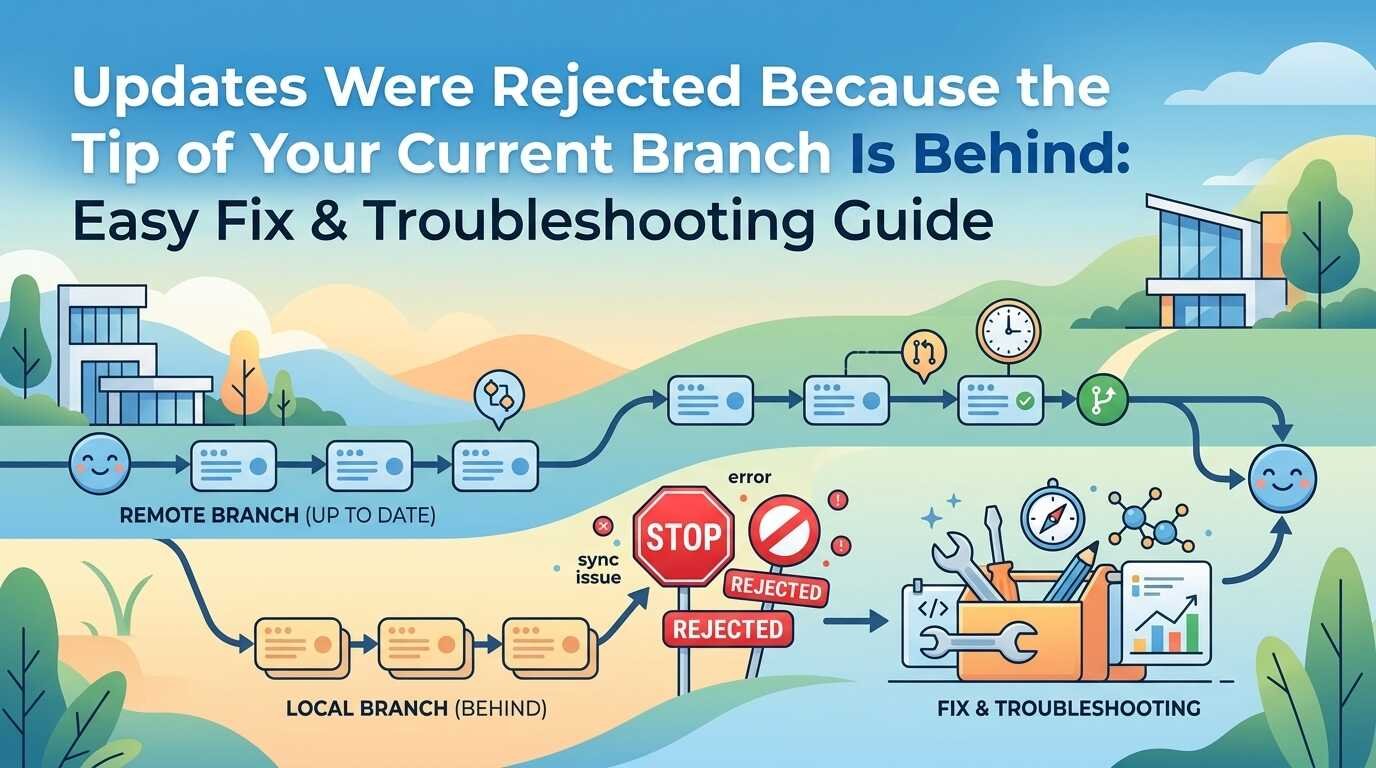
The Git message “updates were rejected because the tip of your current branch is behind its remote counterpart” means Git cannot safely accept your push as a fast-forward update. Usually, the remote branch contains commits your local branch does not have. The same message can also appear after a rebase, amended commit, reset, cherry-pick, or incorrect upstream configuration.
The safest solution is not to run Git force push commands immediately. First, protect any uncommitted work, fetch the remote branch, and compare the two histories. Then choose a merge, rebase, or carefully protected force-push based on what happened.
What the Error Means
Imagine that both branches started with the same history:
text
A—B
You create a local commit:
text
A—B—D local branch
Meanwhile, the remote branch receives a different commit:
text
A—B—C remote branch
Git now sees two different branch tips. If it accepted your local push normally, the remote commit C could become unreachable. Git rejects the update to protect that history. describes this situation as a non-fast-forward error and recommends fetching and merging the remote changes before pushing again.
Key terms
- Local branch: The branch in your local repository.
- Remote branch: The branch stored on , GitLab, Bitbucket, or another server.
- Remote-tracking branch: Your local reference to the last known state of a remote branch, such as origin/main.
- Branch tip: The latest commit currently pointed to by a branch.
- Fast-forward: A push that moves the remote branch directly to a newer descendant commit.
- Non-fast-forward: A push that would discard, replace, or bypass existing remote history.
The error does not always mean that another developer pushed a new commit. Your own history may have changed through git commit –amend, git rebase, git reset, or a similar operation.
Check Before Running Commands
Before choosing a fix, inspect your repository using Git troubleshooting steps.
Check your working tree
bash
git status
Make sure any uncommitted changes are safely preserved before you proceed.
Make sure any uncommitted changes are safely preserved before you proceed.
You can create a temporary checkpoint:
bash
git add -A
git commit -m “WIP: checkpoint before synchronization”
Or stash tracked and untracked files:
bash
git stash push -u -m “save changes before resolving push rejection”
The -u option includes untracked files. Restore the stash later with:
bash
git stash pop
Check your current branch
bash
git branch –show-current
git branch -vv
The second command shows the local branch, its upstream branch, and whether it is ahead or behind.
Check your remotes
bash
git remote -v
This confirms whether origin points to the repository you expect.
Download current remote information
bash
git fetch origin
git fetch updates your remote-tracking references without merging anything into your current branch, making it useful for Git repository synchronization. This makes it safer for diagnosis than immediately running git pull.
Compare local and remote commits
Replace your-branch with the actual branch name:
bash
git log –oneline –graph –decorate HEAD..origin/your-branch
This shows commits present on the remote but missing locally.
bash
git log –oneline –graph –decorate origin/your-branch..HEAD
This shows commits present locally but missing on the remote.
If both commands show commits, the histories have diverged.If commits appear only in the first history, your local branch is behind the remote. If only the second shows commits, your local branch may simply be ahead and the original error could involve a different push target or stale information.
Choose the Right Fix
| Situation | Recommended action | Avoid |
| Remote has commits that must remain | Merge remote history | Force-pushing immediately |
| You prefer a linear history and local commits are private | Rebase onto the remote branch | Rebasing a shared branch without coordination |
| You amended or rebased a private branch | Use –force-with-lease | Plain –force |
| The branch is shared or protected | Merge or coordinate with collaborators | Rewriting its history |
| The current branch has no upstream | Set the upstream branch | Running argument-free git pull |
| Local and remote repositories have unrelated roots | Deliberately merge the histories | Using –allow-unrelated-histories blindly |
| You have uncommitted changes | Commit or stash first | Resetting or rebasing without a backup |
Fix It With a Merge
Use a merge when both local and remote histories should be preserved. This is usually the safest choice for a shared branch.
bash
git fetch origin
git merge origin/your-branch
git push origin your-branch
documents this fetch-and-merge workflow for non-fast-forward push errors.
You can also use:
bash
git pull origin your-branch
This performs a fetch followed by a merge, although separating the commands gives you more visibility into what Git retrieved and what it is about to merge.
Resolve merge conflicts
If Git reports conflicts:
bash
git status
Open each conflicted file and look for markers such as:
text
<<<<<<< HEAD
your local version
=======
remote version
>>>>>>> origin/your-branch
Edit the file so it contains the desired final version. Then stage it:
bash
git add path/to/file
After resolving all conflicts, complete the merge:
bash
git commit
Then push:
bash
git push origin your-branch
To cancel an unfinished merge:
bash
git merge –abort
When merging is best
Choose a merge when:
- Other developers use the branch.
- You want to maintain the original sequence of both remote and local commits.
- Your team allows merge commits.
- You are unsure whether rewriting history is acceptable.
Fix It With a Rebase
A rebase places your local commits on top of the latest remote branch.
bash
git fetch origin
git rebase origin/your-branch
For example, this changes:
text
A—B—D local
\
C remote
into a linear history similar to:
text
A—B—C—D’
The rebased commit D’ has a new commit ID. If the original local commit was already pushed, a normal push may be rejected because the history was rewritten.
After a successful rebase, try:
bash
git push origin your-branch
If Git rejects it because the branch history changed, use the safer force option described below:
bash
git push –force-with-lease origin your-branch
Resolve rebase conflicts
Check the current state:
bash
git status
Resolve the files, stage them, and continue:
bash
git add path/to/file
git rebase –continue
If you want to cancel the rebase and restore the branch to its earlier state:
bash
git rebase –abort
When rebasing is best
Rebase is generally appropriate when:
- You are developing a feature on a private branch.
- Your team prefers a linear history.
- Other people have not based work on your commits.
- You understand that commit IDs will change.
Do not casually rebase a shared branch. Even if the final files look correct, rewriting the branch can disrupt pull requests, review comments, CI checks, and other developers’ local histories.

Use –force-with-lease Carefully
The command often needed after an intentional rebase or amend is:
bash
git push –force-with-lease origin your-branch
A normal push refuses to replace remote history. –force-with-lease permits the replacement only when the remote branch still matches the expected state. Git’s documentation describes this expected-value check as the protection behind the option.
Compare the options
| Command | Behavior | Risk level |
| git push | Accepts only a normal fast-forward update | Lowest |
| git push –force-with-lease | Rewrites the remote branch only if the expected remote state is unchanged | Lower, but not risk-free |
| git push –force | Rewrites the remote branch without the same lease check | High |
Before using it, fetch the latest state and create a local backup:
bash
git fetch origin
git branch backup-before-rewrite
git push –force-with-lease origin your-branch
This is suitable only when rewriting that branch is intentional and acceptable. It is not a blanket solution for main, master, release branches, or shared feature branches.
Why It Happens After git commit –amend
Suppose you push this commit:
text
A—B—C
Then you amend C:
bash
git commit –amend
Git creates a new commit, even if you changed only the message:
text
A—B—C’
C’ is not the same object as C. The files may be almost identical, but the commit hash and ancestry have changed. When you push, Git sees the local branch attempting to replace the remote commit.
The same situation can follow:
- git rebase.
- Squashing commits.
- git reset followed by recommitting.
- Cherry-picking equivalent changes.
- An IDE’s history-rewrite feature.
- An automated branch update.
If the branch is private, protect it and use:
bash
git fetch origin
git branch backup-before-rewrite
git push –force-with-lease origin your-branch
If the branch is shared, stop and coordinate with the team instead of forcing the update.
Fix “There Is No Tracking Information for the Current Branch”
The related error “There is no tracking information for the current branch” means Git does not know which remote branch should be used by default for commands such as git pull. It is a branch-configuration problem, not exactly the same as the non-fast-forward rejection.
Git uses an upstream relationship to know which remote branch corresponds to a local branch. The official git branch documentation describes –set-upstream-to as the option for setting that relationship.
See available remote branches
bash
git branch -r
You can also inspect the remote:
bash
git remote show origin
Set the upstream branch
If the remote branch already exists:
bash
git branch –set-upstream-to=origin/your-branch your-branch
If you are currently on that branch, the shorter form works:
bash
git branch –set-upstream-to=origin/your-branch
Another common option is to set tracking during the first push:
bash
git push –set-upstream origin your-branch
After the upstream is configured, these commands can use the correct remote branch automatically:
bash
git pull
git push
Why tracking matters
Suppose your local branch is named feature-login, but it tracks origin/develop. Running git status or git pull may refer to origin/develop, while this command pushes to another branch:
bash
git push origin feature-login
That difference can make the status message appear inconsistent with the push result. Always check:
bash
git branch -vv
When Local and Remote Histories Are Unrelated
This problem commonly occurs when the local and remote repositories were initialized separately.
For example:
- You run git init locally and create commits.
- You create a remote repository with an automatically generated README.
- The remote README creates a separate root commit.
- You try to push the local branch.
Git may report unrelated histories because the two projects have no common ancestor.
Inspect the histories first:
bash
git log –oneline –graph –all
If you intentionally want to combine the repositories:
bash
git pull origin main –allow-unrelated-histories
Resolve any conflicts, commit the merge, and push.
Do not use –allow-unrelated-histories simply because a normal push failed. It tells Git to combine two independent histories; it does not determine whether they belong together.
Recover From a Mistaken Command
If you ran a reset, rebase, or other risky operation, do not immediately perform more destructive commands.
Create a backup if possible
bash
git branch backup-before-recovery
Review recent reference movements
bash
git reflog
The reflog often shows where HEAD and your branch pointed before a reset or rebase. Identify the commit you want before restoring it.
Cancel an active operation
If a rebase is still running:
bash
git rebase –abort
If a merge is still running:
bash
git merge –abort
Restore a known commit
After identifying the correct commit:
bash
git reset –hard <commit-hash>
Use reset –hard only after confirming that important work is safely stored. It changes tracked files in the working tree and can discard uncommitted changes.
If a remote branch was force-pushed, recovery may require another collaborator’s clone, a hosting-platform pull-request reference, or a server-side recovery feature. Contact your repository administrator before assuming the data is permanently lost.
Common Mistakes to Avoid
Running git push –force first
This can overwrite commits that exist only on the remote. Diagnose the branch relationship first.
Assuming another person caused the problem
An amended commit or local rebase can produce the same message even if you are the only contributor.
Pulling with uncommitted work
A merge or rebase can become harder to understand when local changes are not protected. Commit or stash first.
Ignoring upstream configuration
The error may involve a different remote branch from the one shown by git status.
Deleting and recreating the remote branch
This can disrupt pull requests, review history, branch protections, CI jobs, and deployment automation. It should not be the default fix.
Treating matching files as matching history
Git checks commit ancestry and object IDs, not just the final contents of files.
Rewriting a shared branch
A clean linear history is not worth disrupting collaborators who already pulled the old commits.

Frequently Asked Questions:
What does “updates were rejected because the tip of your current branch is behind” mean?
It means Git cannot update the remote branch through a normal fast-forward. The remote branch has commits your local branch lacks, or your local history was rewritten.
Should I run git pull to fix it?
For a standard case, you can run:
bash
git pull origin your-branch
A more controlled approach is:
bash
git fetch origin
git merge origin/your-branch
This lets you inspect the remote state before merging.
Is git push –force safe?
No. It can replace remote commits without checking whether someone else added work. Use git push –force-with-lease only for an intentional rewrite of a private or coordinated branch.
Why does this happen after git commit –amend?
Amending creates a new commit ID. If the original commit was already pushed, the amended local history may no longer be a descendant of the remote branch.
How do I fix the error after rebasing?
If the rebase was intentional and the branch is private:
bash
git fetch origin
git push –force-with-lease origin your-branch
Do not use this casually on a shared branch.
Why does Git say there is no tracking information for the current branch?
Your local branch has no configured upstream remote branch. Set one with:
bash
git push –set-upstream origin your-branch
or:
bash
git branch –set-upstream-to=origin/your-branch
Can I recover after a reset or force-push?
Often, yes. Check:
bash
git reflog
Then identify the earlier commit and restore it carefully. If a shared remote branch was overwritten, consult collaborators or the hosting service’s recovery tools.
Conclusion
The message “updates were rejected because the tip of your current branch is behind” means Git cannot safely move the remote branch forward from your current history. Protect uncommitted work, run git fetch, inspect the local and remote commits, and verify the correct upstream branch. Merge or rebase when both histories matter, and use git push –force-with-lease only when rewriting a private or deliberately coordinated branch.