

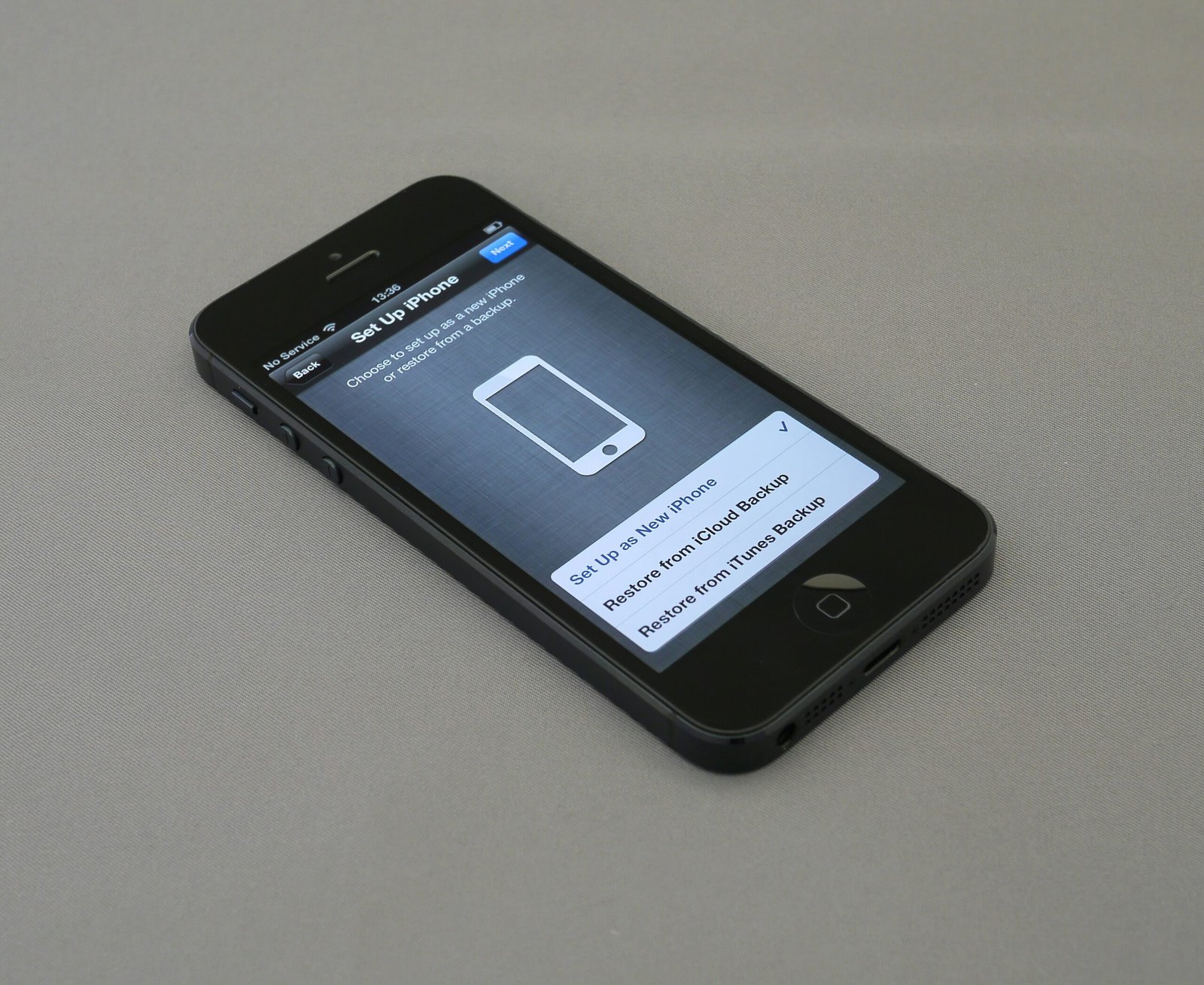
SOS or SOS Only shows up instead of your carrier name and signal bars when your iPhone can’t connect to its cellular network, but it can still dial emergency calls. Your phone can be fine and still show an SOS signal. This can occur if you have low signal, your carrier is currently having network problems, if you don’t have an active SIM or eSIM, or if your cellular data is incorrectly set up, and this problem could also persist if your account has issues.
If you’re asking, how do I get my phone out of SOS mode, start with the simplest fixes rather than immediately resetting or repairing the device. If you are in an area that has better reception, a quick cycle of airplane mode off then back on, then power cycle your device often resolves connection issues within minutes. After those basic troubleshooting options are exhausted, cellular line issues, SIM (or eSIM) issues, software issues, and carrier issues may also contribute.
The best approach for determining where the problem lies is to figure out if it is your location, the cellular network itself, you or your device’s settings, your account or the device hardware. Below is an order to check that make practical sense.
What Does SOS Mode Mean on a Phone?
TheSOS andSOS Only symbols are an indication that the handset is unable to establish it’s usual service with the mobile network carrier. The handset knows that mobile coverage is available but that it cannot acquire service through it properly.
The specific words varies depending on the device being used. You could receive the SOS and SOS Only symbols on a mobile, where an Android handset can display other indicators such asNo service and Unknown.
SOS indicates that only it’s usual mobile service function has been affected. You are able to get on to the internet using Wi-Fi, access certain applications on your mobile offline, or access internet based applications.
You can still place emergency calls with your device in applicable areas, as it can use whatever network cover available at your current location to make emergency calls. This is different tonormal phone calls to which theSOS signal is applicable to and indicates normal phone call communication is not possible through a normal channel, but emergency contact is possible.
SOS is not the same as Airplane Mode
Airplane Mode is a toggle that is designed to disable wireless signals. SOS is usually just a signal meaning no carrier connection. They can go together sometimes; If airplane mode somehow gets activated and then when it is off, the carrier can recognize your phone again. A phone could be on SOS after the Airplane mode has been turned off because of no signal, or out age, and then not pick it up again.
Why Does a Phone Get Stuck in SOS Mode?
The same SOS message can have several different causes. Understanding them helps you avoid wasting time on fixes that cannot address the actual problem.
Weak cellular coverage
It might be too far out that the signal just isn’t reliable, maybe it’s a basement or a parking garage, elevators, open spaces and things with huge, thick walls like some kinds of buildings can interfere with cellular service. Move it to an open outdoor space, or another place where there’s good service. If you start to get good service again once you move it, it’s probably not really a problem with the phone itself.
A temporary carrier outage
There may be a network problem or interruption affecting your carrier’s network. The problem has probably been located if several people in your immediate area using your same carrier have no service at all. Usually, there isn’t any troubleshooting needed on your phone itself to remedy the situation. Your phone should re-establish network connection as soon as the issue is corrected on your carrier’s end.
A temporary network glitch
Sometimes the phone loses its cellular registration and does not immediately reconnect. This can happen after changing locations, restarting from a low-battery condition, installing an update, or experiencing a temporary communication error between the phone and network.
A short Airplane Mode cycle or restart may be enough to reestablish the connection, making iPhone connectivity troubleshooting a useful first step before changing advanced settings.
SIM or eSIM problems
It could be that a physical SIM card is either corrupt, incorrect, disabled or activated improperly, or that an eSIM simply isn’t activated/provisioned correctly. This is most likely to happen if the emergency SMS arrived after you have: changed network provider, porting number, swapping SIM or got new phone.
Account-related problems
Your carrier account can also affect network access. A service restriction, activation issue, plan change, or other account problem may prevent the device from registering normally.
Those situations generally require assistance from the carrier.
How Do I Get My Phone Out of SOS Mode?
Try the following solutions in order. The first few take only a moment and do not change important settings.
1. Move somewhere with better reception
Check your surroundings before touching any settings.
If you’re inside a building, move near a window or outside if practical. If you’re in a rural or remote area, try moving to a location where you normally receive service.
After changing locations, wait briefly for the phone to search for a network.
If the carrier name and signal bars return, you have likely identified a coverage issue rather than a phone malfunction.
2. Toggle Airplane Mode
Airplane Mode is one of the quickest ways to force the phone to restart its wireless connection.
Open the Control Center or quick settings panel and turn Airplane Mode on. Leave it enabled for roughly 10–15 seconds, then turn it off.
The phone should begin searching for available cellular networks again, which is a useful step in basic cellular network troubleshooting.
Give it a short time to reconnect instead of immediately repeating the process.
3. Restart the phone
If toggling Airplane Mode does not work, restart your device.
A restart can clear temporary software problems and refresh the phone’s connection to the cellular network.
After turning the phone back on, wait until the startup process is completely finished. Then check whether the carrier name or normal signal indicator appears.
4. Check the cellular line
Find the cell service or mobile network settings on your phone.
Ensure that the cell line you intend to use is turned on in Settings if you are using dual SIM, an eSIM in addition to your physical SIM, or both. Your cell service will not work normally, and even the phone could appear to be working correctly, if a cell line is turned off.
Ensure that the expected cell line is enabled.
5. Check your SIM or eSIM
Turn off your phone to remove the physical SIM Card when swapping out or repositioning the card. It should fit the tray easily without any forcing, make sure that you check for any physical damages but do not ever attempt to trim or bend your SIM card.
Ensure that when dealing with an eSIM that you are not about to just remove it on cellular Settings because all that you are going to do is make a new activation issue, and there will then be no cellular profile to even have the carrier fix (although they might just restore what service was lost if they can).
6. Check for software updates

An old Operating System may at times be the culprit when you have aconnectivity issue. If it’s appropriate then connect to Wi-Fi and look up “Software update” setting on the phone. Install the update if one is available by simply following your device’s regular way.
Also, ensure that your carrier hasn’t pushed down a carrier settings update to you especially on an iPhone.
There is no guarantee it will resolve the SOS mode, but it eliminates one possible avenue to a compatibility issue.
7. Check for a network outage
Check your carrier for possible issues by reviewing its carrier outage information before making major changes to the phone. Assuming that all the basic troubleshooting steps have been done, a cause for your cell phone service to not work could be an outage with your provider. You can use a wifi connection to find your carriers site, app, or customer support pages. If an outage IS taking place, rapidly changing network settings wont fix your cellular service issues.
How to Fix SOS Mode on an iPhone
If you have an iPhone displaying SOS, begin with the basic checks:
- Turn off Airplane Mode.
- Move to an area with better reception.
- Restart the iPhone.
- Check that your cellular line is enabled.
- Verify your SIM or eSIM.
- Install available iOS updates.
- Check for carrier settings updates.
- Determine whether your carrier is experiencing an outage.
If the issue persists, resetting your iPhone’s network settings is your next option. A network reset is far more intrusive than simply rebooting the phone. It will erase stored Wi-Fi networks and passwords, Bluetooth connections, various VPN setups, etc. Therefore, it only makes sense that you consider it when simpler fixes have run into a brick wall.A full restore is also not recommended as a first response.
How to Fix SOS Mode on Android
As the settings may be different across different Android manufacturers the menu names might vary on your particular phone. Ensure you check in settings called Network & Internet, Connections, Mobile Network or SIM manager that the correct SIM is enabled, mobile network is enabled and that Air Plane mode is off. You may have some android handsets that offer you the option to manually choose the network operator, an automatic selection on the network is normally the easier option unless advised otherwise by your network provider. When travelling aboard do consider international roaming and whether it is active if relevant to the current area you are visiting.
What If SOS Appeared After Changing Your SIM?
Another clue might be if you’ve recently activated a new SIM card. If it was physicalSIMcard, then check that your carrier has successfully activated it and that it’s seated correctly in your phone. If you’re using an eSIM, then look for the plan to be listed in your phone’s settings.
Switching carriers or transferring phone numbers can also sometimes have activation steps that can’t be finished entirely by using the phone.
If your carrier advises you that they’re still processing the activation, don’t repeatedly restart your phone as it’s unlikely to help the activation progress more quickly. You could also test the SIM in another device if you have access to one that takes the same type of SIM. If it doesn’t work in another device than it’s more likely that there is a problem with the carrier or the SIM.
What If Your Phone Goes Into SOS While Traveling?
Changing location could change cellular service your phone requires.
Outside of your home country, your carrier might partner with another company for your cellular roaming. Your plan would need to include the service you need in the area.
Review your roaming settings and ensure you’ve enabled international service, if necessary for your travel destinations.
Confusing cellular service after traveling back home also happens if your phone does not automatically switch back to your primary carrier. Ensure the main cellular line is turned on and give the phone time to register with the new location. If Airplane mode was enabled while on an airplane you will have a tendency to forget turning airplane mode off upon landing.
Should You Reset Network Settings?
A network reset can also be helpful in situations where stored network configuration settings on the phone are making things difficult to get to communicate. It would generally not be the first action to try in this instance, and depending upon your device could delete stored passwords in Wi-Fi networks you have already connected to, Bluetooth pairs, VPN configurations or other connection based settings. In advance of performing the action you should ensure that you remember any passwords required to connect to your normally used networks.
This can also be something to try if you get cellular services on the phone if it has coverage and good reception with a working SIM and/or eSIM.
If SOS is returned then it will not be in the network configuration settings stored in the phone but due to either the carrier, account, SIM/eSIM, or hardware.
Common Mistakes to Avoid
Don’t assume that SOS means that your phone is broken. A cellular outage or a poor signal could be the cause and this is on completely normal phones. Don’t change lots of advanced options all at once.
If you change several items at the same time, you won’t be sure what made it better or made another problem happen.
Don’t delete your eSIM to see if reloading the eSIM fixes the issue. Your cellular profile may have to be reactivated by your carrier if it has been deleted. Don’t do a factory reset. You probably don’t need to do a factory reset to resolve a problem with coverage or your carrier, and it wipes out your personal data and settings.
Don’t believe third-party applications that say they can boost your cellular signal.
Software cannot get cellular coverage in a place where there isn’t any coverage. Don’t toggle all settings on and off every few seconds. Once you have changed your settings – don’t bother toggling settings off and on and on and off and off and on and back off and on all over again.
The iPhone needs time to look for and find the cell service after each change you actually make.
How to Tell Whether the Problem Is Your Phone or Your Carrier
If others, also on the same carrier, and in the same location have lost service, a carrier outage becomes probable.
If others are successfully accessing service, but you appear to still be stuck on SOS, turn your attentions to checking on your SIM or eSIM, cellular settings, account, and finally, your device.
Being able to test out your SIM on a compatible phone is another test, if the opportunity is available. Similarly, trying your phone with a known-working SIM can indicate if the device is causing the issues.
Again, neither test is always possible to do, but they are potential time and money-savers when dealing with resets and repairs.
When to Contact Your Carrier
Call your carrier. The phone might be stuck in SOS because there’s an issue that your phone alone can’t show you in the Settings menus. Your carrier could possibly detect an account block, an activation issue, or a local service or registration problem.
Mention whether the issue started that very day and what time.
Tell support whether any other phones in your household with that same carrier are also stuck in SOS. Let support know if you are switching from another carrier (because maybe you didn’t transfer you number), upgrading you plan, changing your plan, or switching phones/ SIM Cards.
When Your Phone May Need Professional Repair
Hardware malfunction is increasingly likely if there has been recent physical trauma or water exposure on the phone. Interference from a faulty cellular antenna or radio component, SIM reader, or any of a variety of internal circuitry can be a cause for a loss of signal. If it has been verified that your carrier and your immediate vicinity are performing properly but your phone cannot achieve a network connection, your next step is professional services. Opening your phone is generally not recommended unless you are technically inclined and have access to the proper tools-even though you will likely cause even more problems.
A Simple SOS Troubleshooting Order
If you want a quick checklist, follow this sequence:
- Move to an area with stronger cellular reception.
- Turn Airplane Mode on and off.
- Restart the phone.
- Check that the correct cellular line is enabled.
- Verify the physical SIM or eSIM.
- Check for system and carrier updates.
- Look for a carrier outage.
- Consider resetting network settings.
- Contact your carrier if service does not return.
- Seek professional device support if the carrier confirms that the network and account are working normally.
Starting with the least disruptive fixes makes troubleshooting easier and provides practical phone troubleshooting tips while reducing the chance of creating another problem.
Frequently Asked Questions
1.How do I get my phone out of SOS mode quickly?
Start by checking your cellular reception and moving somewhere with stronger coverage. Then toggle Airplane Mode, restart the phone, and confirm that your SIM or eSIM and cellular line are active. If the issue continues, check for a carrier outage.
2.Why does my phone say SOS but Wi-Fi works?
SOS generally refers to the cellular connection, while Wi-Fi uses a separate wireless connection. Your phone can therefore remain connected to Wi-Fi even when it cannot connect to your regular cellular carrier.
3.Does SOS mean my phone has no service?
It generally means normal cellular service is unavailable. Depending on the phone, location, and available networks, emergency calling may still be possible.
4.Can a bad SIM cause SOS mode?
Yes. A damaged, inactive, improperly installed, or incorrectly activated SIM can prevent a phone from registering with its carrier. Similar problems can occur with an eSIM.
5.Will restarting my phone fix SOS?
A restart can fix temporary software or network-connection glitches. It will not resolve a carrier outage, lack of coverage, or an inactive cellular account.
6.Should I factory reset my phone if it says SOS?
A factory reset should generally not be your first option. Try checking coverage, Airplane Mode, the cellular line, SIM or eSIM, updates, and carrier status first.
7.Can I use my phone while it shows SOS?
You can often continue using features that work through Wi-Fi, Bluetooth, or locally stored data. Regular cellular calls, texts, and mobile data may remain unavailable until the phone reconnects to its carrier.
Final Takeaway
If you’re wondering how do I get my phone out of SOS mode, begin by treating it as a cellular connection problem rather than assuming your phone is broken. Check your location, toggle Airplane Mode, restart the device, and make sure the correct SIM or eSIM and cellular line are active. Then check for updates and carrier outages before moving to a network reset. If other customers have service but your phone does not, your SIM, account, settings, or device may need closer attention. Persistent SOS service is a good reason to contact your carrier, especially after basic troubleshooting fails. Working through these steps in order can restore service while avoiding unnecessary resets, eSIM deletion, or repair costs.
Conclusion
If you’re wondering how do I get my phone out of SOS mode, start with the simplest solutions before assuming there is a serious problem. Get a location with better coverage or disable and re-enable airplane mode and restart your device; check your SIM/eSIM and plan are activated. You might be affected by an outage (check your carrier service status). Installing a software update on your device may fix this issue; you can also reset the network settings.
Sometimes this type of problem is connected to a carrier account, the SIM card/eSIM or hardware, and you would need assistance to fix it.
It is more effective to follow this troubleshooting step by step to save unnecessary repairs and procedures.